Creating automated sign-ins for your scripts or in an Azure Function can be done by creating an App Registration. You will establish trust between your app and Microsoft Identity Plattform and gain the possibility to sign-in without a user account.
What I did this time was to give the application itself permissions to Microsoft Graph Scopes by script. There are many good guides how to achieve this in Azure AD interface if you want.
However, here we are a lazy admin that does not like to click my way through the interface. So I tried to create a script for the task. .
The prerequisites
- An Azure Account that with Subscription and permissions to manage applications in Azure AD.
- PowerShell Module: Microsoft.Graph.Authentication
- Scopes: Application.ReadWrite.All and Directory.Read.All
So where to start
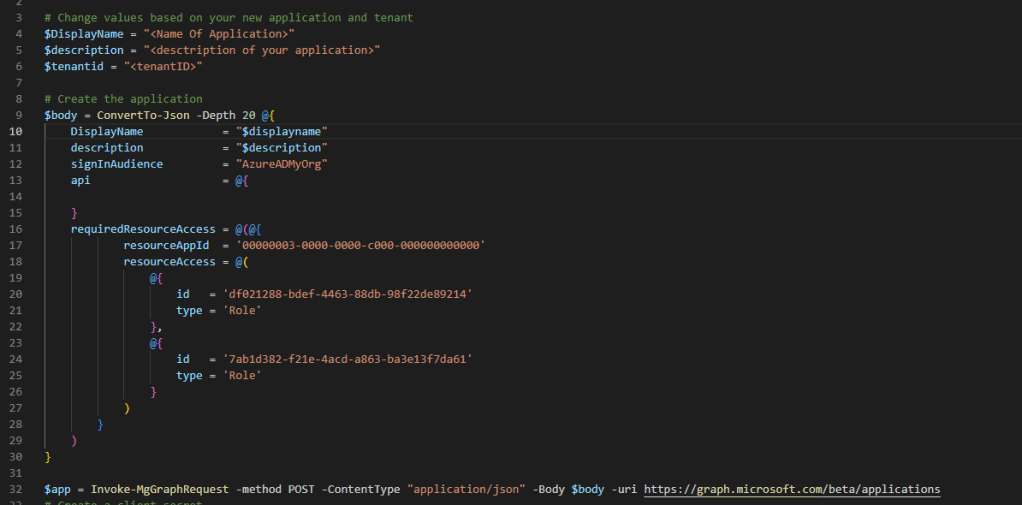
What we want to do is to add name, description, tenantID, and which account types that are supported. I chose to add Accounts in this organization directory only.
Scopes are tied to a resource so to be able to add our scopes for Microsoft Graph we need to add the resourceAppId which is the guid of Microsoft Graph.
Next thing is to add scopes for your application. What does it need to do the task. Don’t give it more than needed.
All scopes have their own Id that differes between a delegated access or an application access. Each resource access need to be specificed with an Id and a Type. You can find the id in the linked docs page. If you pick an id for a delegated access the type should be scope and if you pick one for application access, the type is Role.
A full list with Scopes and IDs can be found here
In my example User.Read.All and Directory.Read.All
Client Secret
The next thing we need is a Client Secret that will act as the applications password. A thing worth to mention is that your application id together with your client secret are credentials to access your environment. When adding it to your script, consider keeping the client secret in a Key Vault and extract it from there.

You will now receive the application name, application Id, client secret and tenant id in one blob. Save it to add in your Azure Function or application.
When all this are done, go to your azure ad app registration and find your newly registered app. Navigate to API permissions and grant on behalf of your organization.
You can find the whole script in my github here
 Sandra Saluti